
5 Inputs and 2 Relay Outputs.
Upgrade any standalone system with reliable 4G LTE connectivity (with 2G fallback), instant text/voice alerts, and autonomous remote equipment management. The perfect replacement for legacy ESIM252 modules.
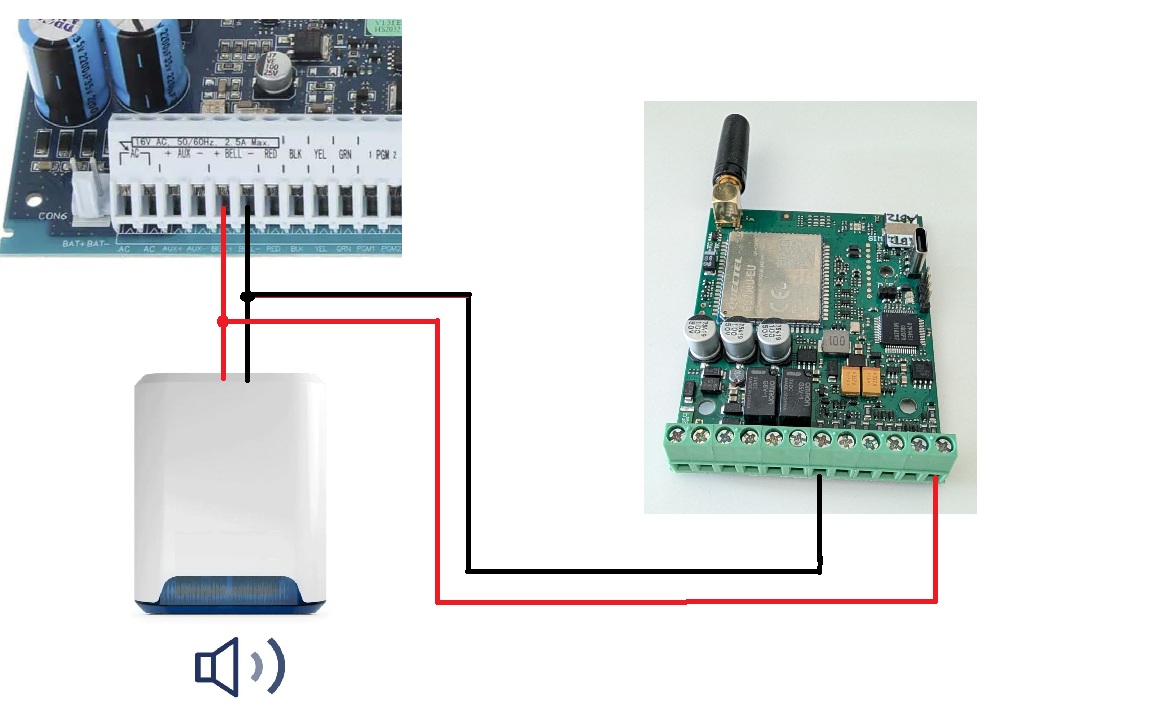
Simple Retrofits & Legacy Alarm Upgrades
- Turn Any Old Siren Into a Smart Alarm: Do you have an old, offline garage or warehouse intrusion alarm system siren that only makes noise locally? Simply connect the ESIM452 to the siren’s power line or trigger output. The moment the siren sounds, the ESIM452 instantly broadcasts text alerts and phone calls to your mobile device.
- Add GSM/4G Features to Any Alarm Panel: Upgrade any third-party intrusion alarm panel. By connecting the panel’s PGM outputs to the ESIM452 inputs, the module can track changes instantly. Whenever the system is Armed, Disarmed, or an Alarm is triggered, the PGM sends a signal, and the ESIM452 sends a descriptive text message directly to the owner.
Water, Sewage & Automated Pump Controls (M2M) when connected two ESIM452 devices
- Autonomous Tank Refilling (Device-to-Device Automation): As proven in dry-summer agricultural projects, two ESIM452 modules can automate water infrastructure over the cellular network. When a water tank sensor registers a low-level status, the first module automatically dials the second module located at a remote pump station. The second module toggles its relay output to start the pump. Once the tank is full, a second call shuts the pump down safely—all completely without human personnel.
- Flood & Level Alerts: Instantly monitor ditch and well flooding, or receive an exact notification the moment a residential or industrial sewage tank becomes full.
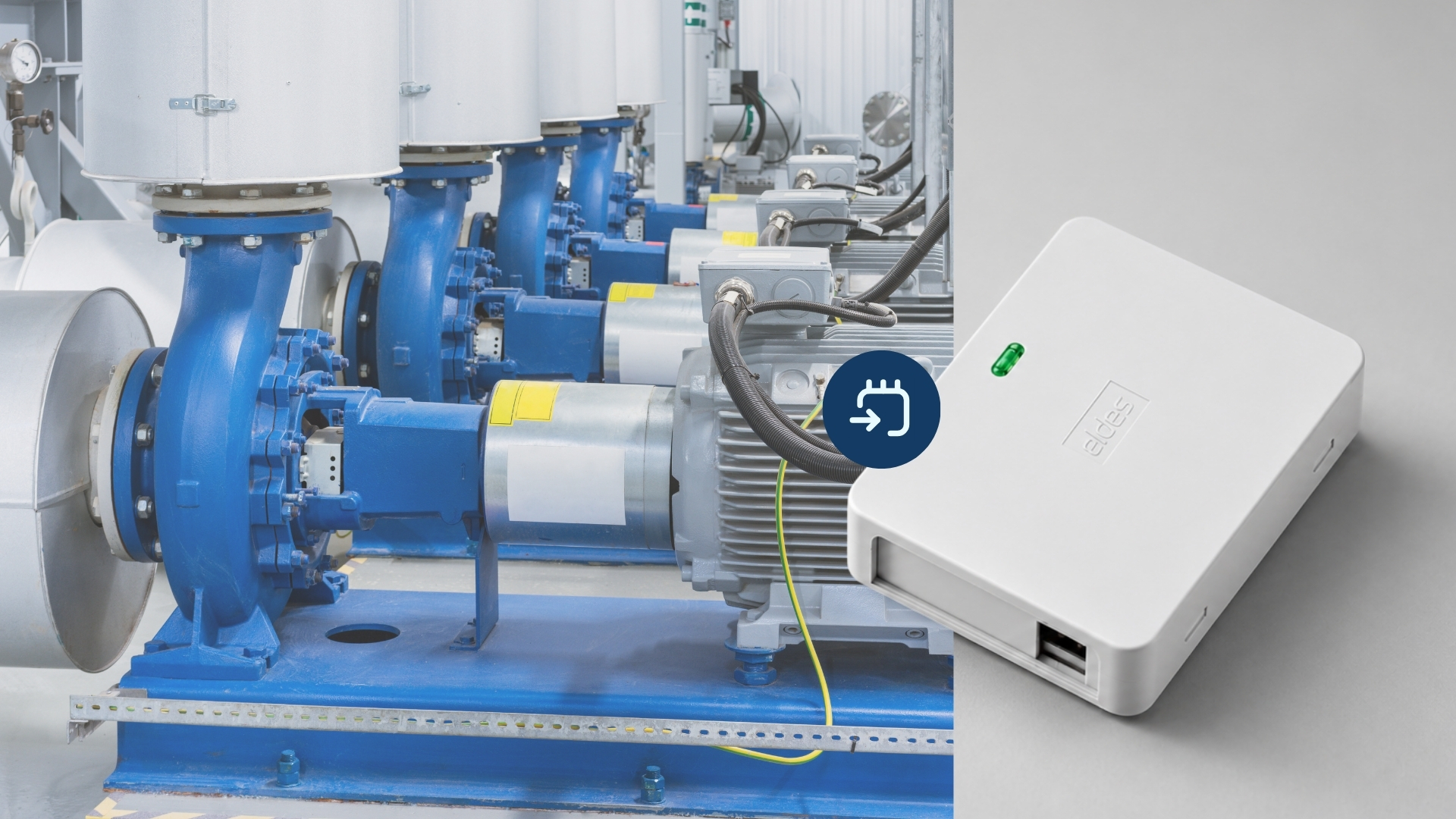
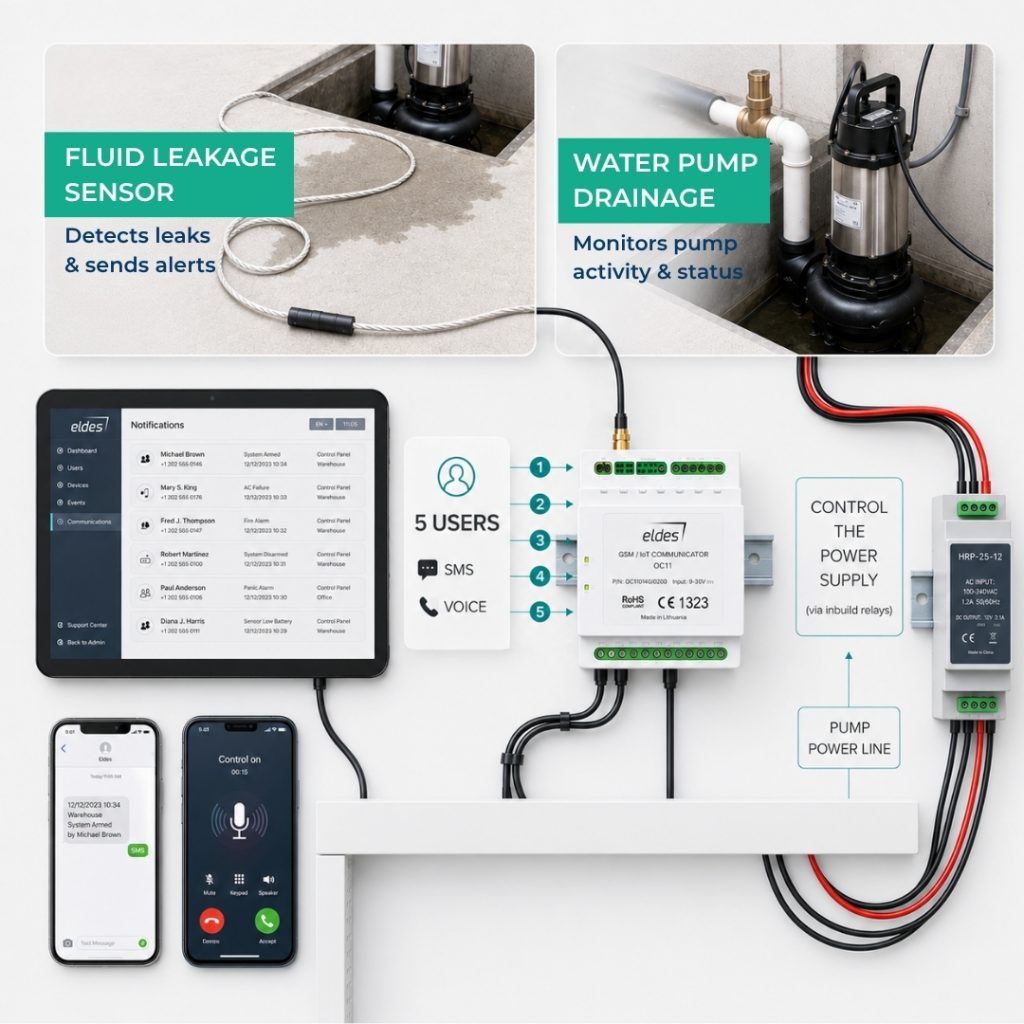
Industrial, Agricultural & Fire Panel Integration
- Fire Alarm Alerts for Farms & Outbuildings: Connect any commercial fire alarm panel’s PGM output to the ESIM452. In the event of a fire or a system fault, the module forwards immediate text and voice alerts directly to the property owner or maintenance team, complementing standard ARC (Alarm Receiving Center) routing.
- Farm & Electric Cattle Protection: Ideal for monitoring technical error states in ventilation systems, automated milking setups, and tracking the loop integrity of electric cattle fences.
- Temperature, Ventilation & Climate Monitoring: Connect a mechanical thermostat or HVAC fault output to receive instant notifications if temperatures drop below critical thresholds, protecting sensitive crops, pipework, or livestock.
Easy to Install
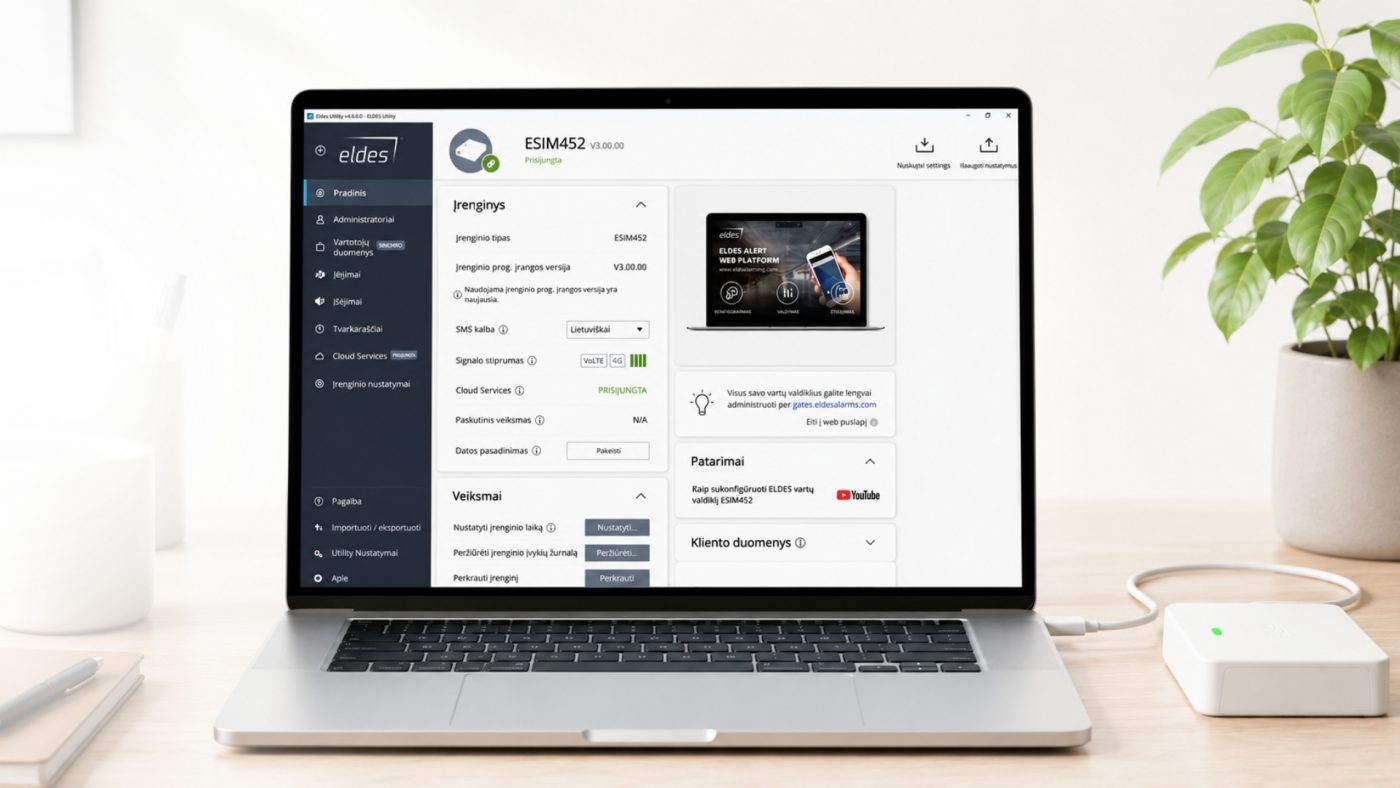
Simple setup via SMS or USB using Eldes Utility Tool.
Quick to configure, easy to integrate, and ready for everyday use.
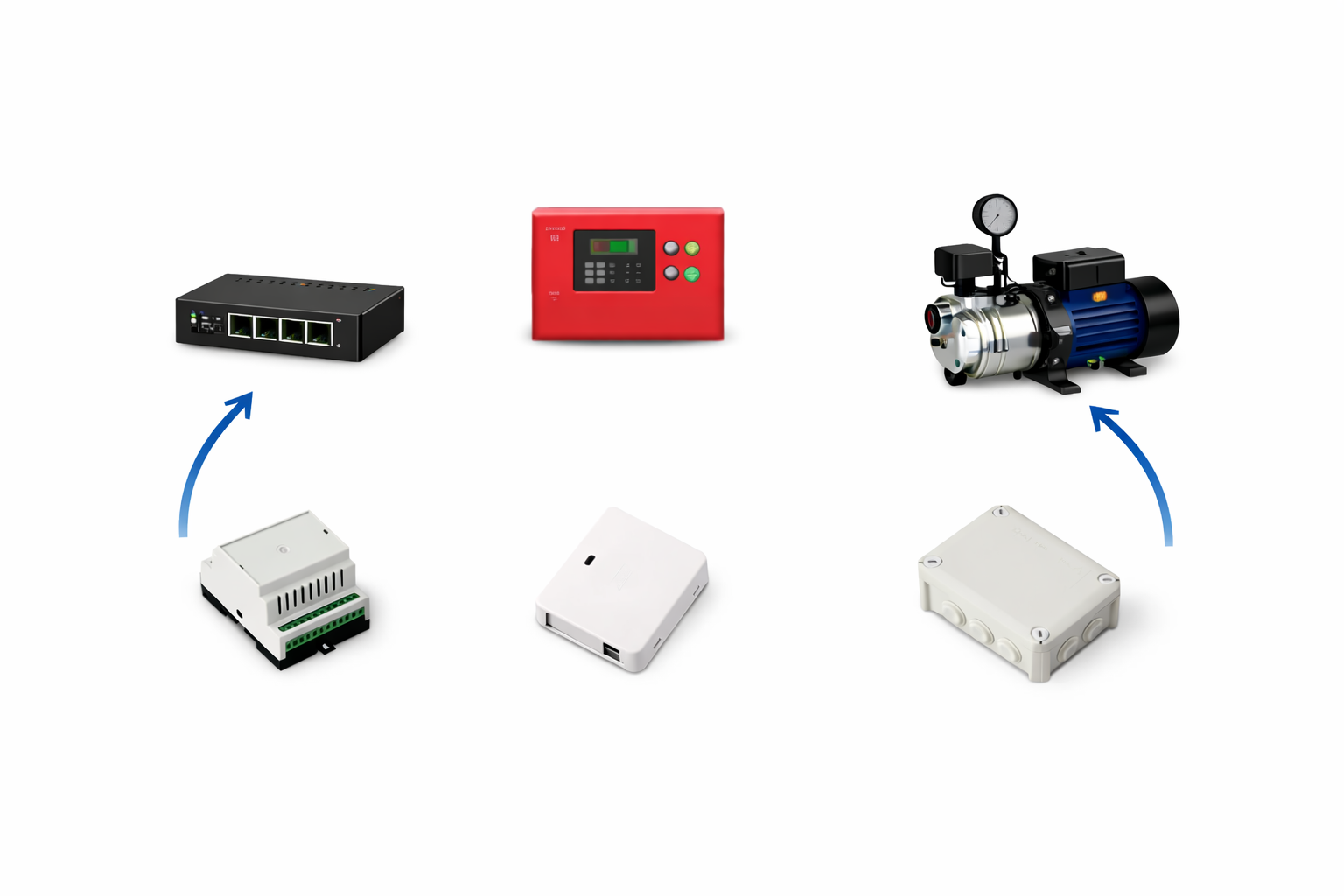
Versatile Applications
Suitable for alarm communication, technical monitoring, equipment control, and automation.
One device for multiple applications.
Clear Event Notifications
- Receive alarms and restore fire panel’s notifications via SMS or voice calls. Customized messages for each input help ensure clear and accurate event identification.
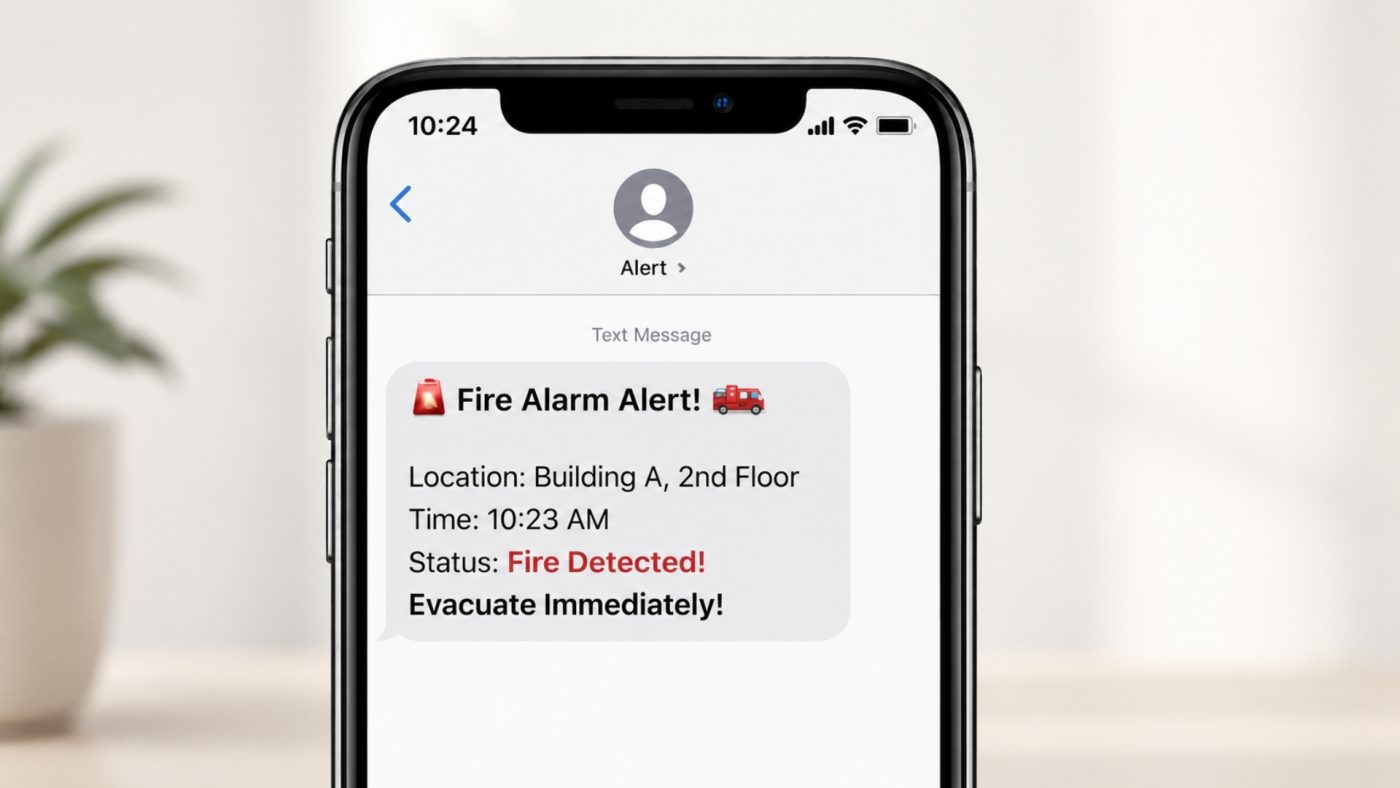
Key Technological Advantages. Features.
Custom Voice Calls with 10 Prerecorded Messages
When a critical alert happens, text messages can sometimes be missed. The ESIM452 features an internal audio vault allowing you to upload up to 10 unique voice messages prerecorded on your PC. In the event of an alarm, the device will call up to 5 designated users simultaneously and play the exact audio recording matching the triggered event (e.g., “Warning: Fire panel fault detected at Warehouse 2”).
Seamless 4G LTE Connectivity with 2G Fallback
Engineered for ultimate uptime. The ESIM452 utilizes lightning-fast 4G LTE networks for near-instantaneous notification delivery, but features automatic 2G network fallback. This guarantees consistent, uninterrupted communication even in deep rural areas or isolated monitoring sites.
The Perfect Upgrade from ESIM252
If you are currently managing older ESIM252 deployments, the ESIM452 offers a seamless upgrade path. It drops perfectly into traditional input/output roles while upgrading your infrastructure to modern cellular network speeds and offering superior scheduling flexibility.
Smart “No-Cost” Remote Switching
Control automated gates, barriers, pumps, or heating systems without paying a cent in carrier fees. The ESIM452 references its internal authorized user list; when an approved user calls the device, it recognizes the number and drops the call to prevent billing while instantly triggering the onboard relay output.
Quick Specs for Installers
- 5 Configurable Digital Inputs: For thermostats, float switches, sirens, fire PGMs, or door contacts.
- 2 Relay Outputs: Remotely toggle pumps, backup generators, sirens, or automated gates.
- 5 Authorized Users: Assign up to 5 individual phone numbers to receive distinct text messages or voice call alerts.
- 10 Voice Message Slots: Store custom WAV/audio files configured locally via PC.
- Eldes Utility Tool: Quick programming over a simple local USB connection or via quick SMS text commands.
Specifications
| Users | up to 5 |
| Power supply | 10-24 V 50 Hz ~ 1000 mA max / 10-24 V 1000 mA max |
| Idle current | up to 50mA |
| Modem frequency | 4G 700/800/900/1800/2100/2600MHz; 2G 900/1800MHz |
| Number of inputs | 5 |
| Number of outputs | 2 |
| Output type | Relay; NO (normally-open) or NC (normally-closed) – configurable |
| Maximum commuting output values | 125VAC ~0,5A / 24VDC 1A |
| Event LOG | up to 500 events |
| Dimensions | 87×107×29 mm |
| Operating temperature range | -20…+55 °C |
| Humidity | 0-90% RH @ 0… +40°C (0-90% RH @ +32… +104°F) (non-condensing) |
FAQ
What software should I use for ESIM452 configuration?
ESIM452 can only be configured using ELDES Utility software. You can download software from ELDES Utility Tool – ELDES Alarms
How can I connect to my ESIM452 device to perform configuration?
Device must be connected to a power supply and powered on (please see the manual for the supply voltage required).
There are several ways to connect to the device:
1. You can do this locally using USB cable and ELDES Utility software installed on your Windows PC.
2. You can connect to the device remotely using the ELDES Utility software. Open ELDES Utility on your Windows PC, press Remote Connection Setup and follow the instructions in ELDES Utility. For remote connection to your ESIM452, SIM card that is inserted to device must have available mobile data!
How can I restart my dialer remotely?
Send SMS to SIM card inserted to ESIM452 with text:
XXXX RESTART (example: 1111 restart) (SMS can contain upper or lower case letters)
XXXX – Your SMS password. If you don‘t know your SMS password, please contact your system installer.
The system will inform you automatically via SMS message when ESIM320 is restarted. This might take up to 2 minutes.
Why does my ESIM452 not drop calls till it goes to the mailbox?
Please update FW to the latest version. If the problem remains, please change to another SIM card operator.
How can I update firmware (FW) for ESIM452?
EESIM452 firmware updates automatically via mobile networks when the device has access to mobile data. In most cases, the APN must be correctly configured in the device settings to allow this.
A manual update can also be performed by downloading the firmware from our website. Before updating the firmware, please make sure to save both the configuration file and the User Database of your gate controller.
You can download the latest ESIM452 firmware from:
https://eldesalarms.com/gate-controller-esim320/#firmware
Please ensure you are logged in to our website to access the files. Once the firmware file is downloaded and saved to your PC, follow the steps below:
1. Power down the device.
2. Short-circuit (connect) the DEF pins.
3. Connect the device to your PC using a USB cable.
4. A new window should appear showing the .bin file. If it does not, open My Computer and locate the Boot Disk drive manually.
5. Delete the existing .bin file from the drive.
6. Copy the new firmware .bin file to the very same window.
7. Power down the device.
8. Disconnect the USB cable.
9. Remove the short-circuit from the DEF pins.
10. Power up the device.
11. The firmware update is now complete.
What are the prices of ELDES production?
To get the prices of the devices please check ELDES distributors’ Internet sites. Otherwise, feel free to contact out partners in your country/city by telephone or e-mail.
How to change the SIM card?
To change the SIM card, first remove the PIN code from the card. Once the SIM card is replaced, test the new number by making a call. All users who previously accessed the gates should be able to use the new number, but they will need to call the updated phone number. If Cloud services are used then make sure to check if it will synchronize. You might need to configure the GPRS settings, such as the APN, according to your GSM operator’s guidelines.
Manuals
Certificates
CE certificate of conformity