
ESIM452 provides 4G LTE connectivity with 2G fallback, SMS and voice call notifications, and remote control through two relay outputs. With 5 digital inputs, it can monitor connected equipment and external systems, making it suitable for alarm communication, technical monitoring, and remote control applications. It is also a modern replacement for the legacy ESIM252.
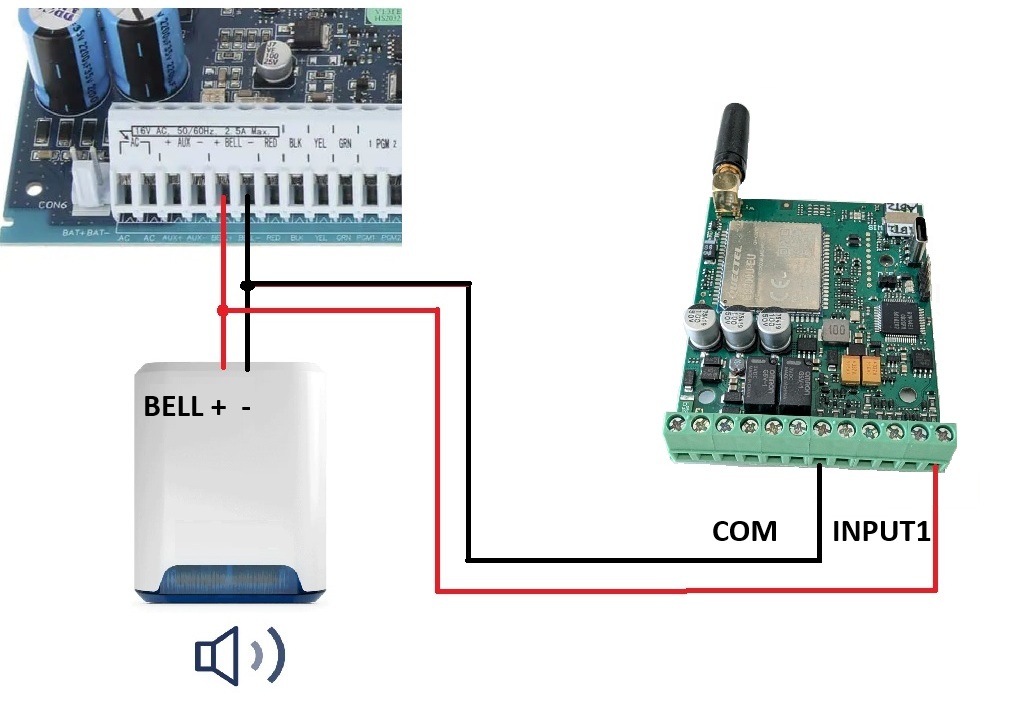
Upgrade Existing Alarm Systems
- Add Remote Alerts to Existing Alarm Systems: Connect an alarm or siren output to an ESIM452 input to receive SMS or voice call notifications when an alarm occurs. This provides a simple way to add remote notifications to an existing system without replacing the alarm panel.
- Add 4G LTE Communication to an Existing Alarm Panel: Connect the alarm panel’s PGM outputs to the ESIM452 inputs to monitor different system events. When the system is armed, disarmed, or an alarm is triggered, the PGM output sends a signal to ESIM452, which then sends a corresponding SMS or voice call notification to designated users.
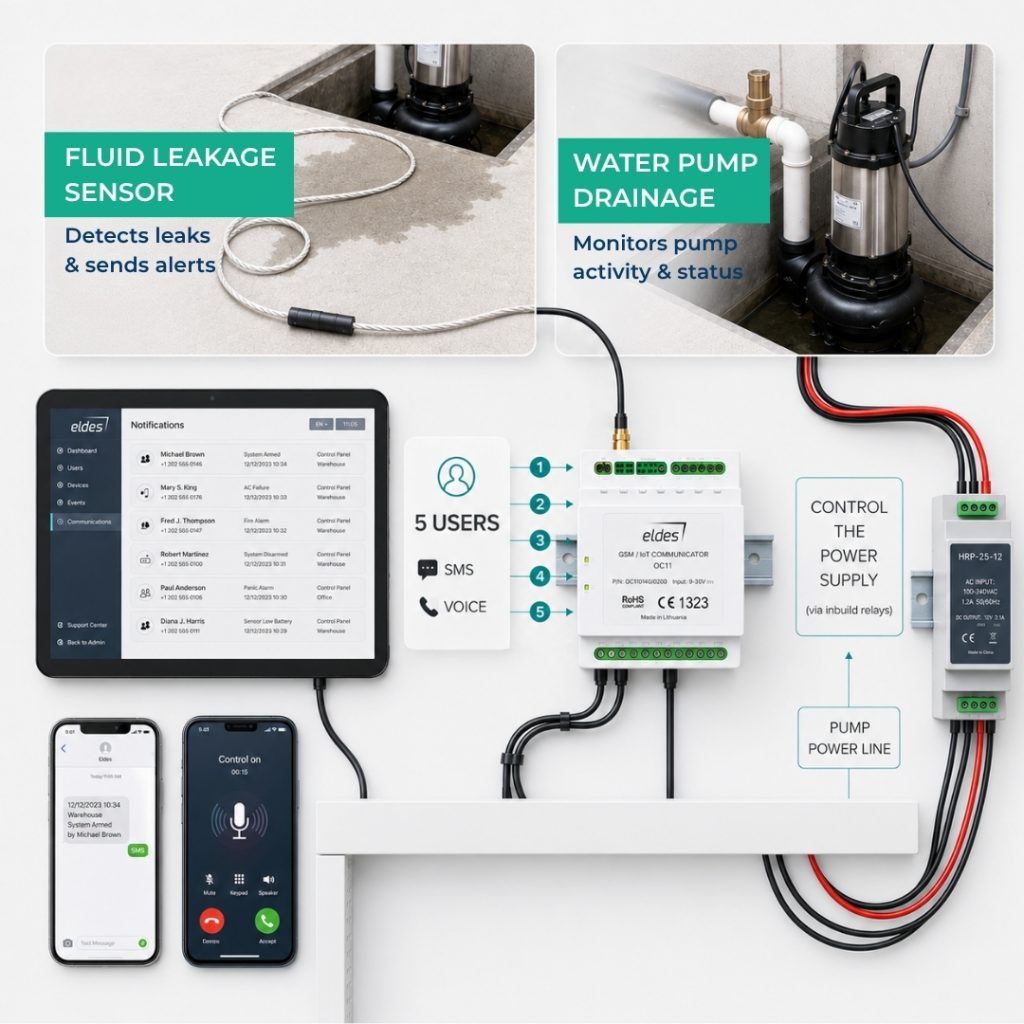
Water Level Monitoring & Automated Pump Control
- Automated Pump Control (M2M): Two ESIM452 devices can work together to automate pump control over the cellular network. When a connected level sensor detects a low water level, the first ESIM452 calls the second device, which activates its relay output to start the pump. When the required water level is reached, another call can switch the pump off.
- Water Level & Flood Alerts: Connect level or flood sensors to the ESIM452 inputs to receive SMS or voice call notifications when a configured level is reached or flooding is detected.
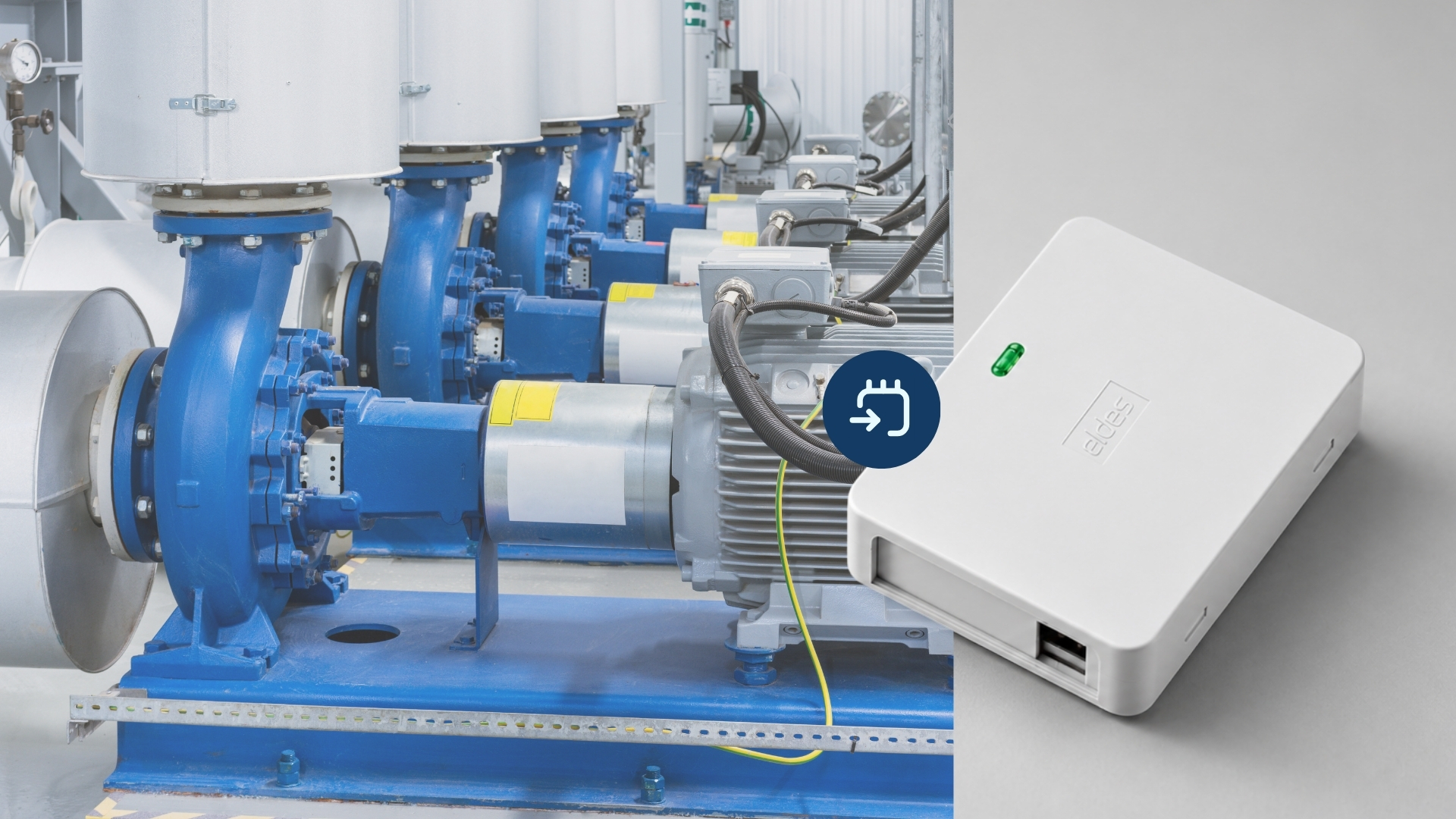
Industrial & Technical Monitoring
- Fire Panel Monitoring: Connect a fire alarm panel’s PGM output to an ESIM452 input to receive SMS or voice call notifications when an alarm, fault, or other configured event occurs.
- Equipment & System Monitoring: Monitor the operating status of pumps, ventilation systems, power supplies, and other technical equipment. ESIM452 can notify designated users when equipment starts, stops, or a fault is detected.
- Temperature & HVAC Monitoring: Connect a thermostat or HVAC system output to an ESIM452 input to receive notifications when the temperature rises above or falls below a set level, or when an HVAC system fault occurs.
Quick and Simple Setup
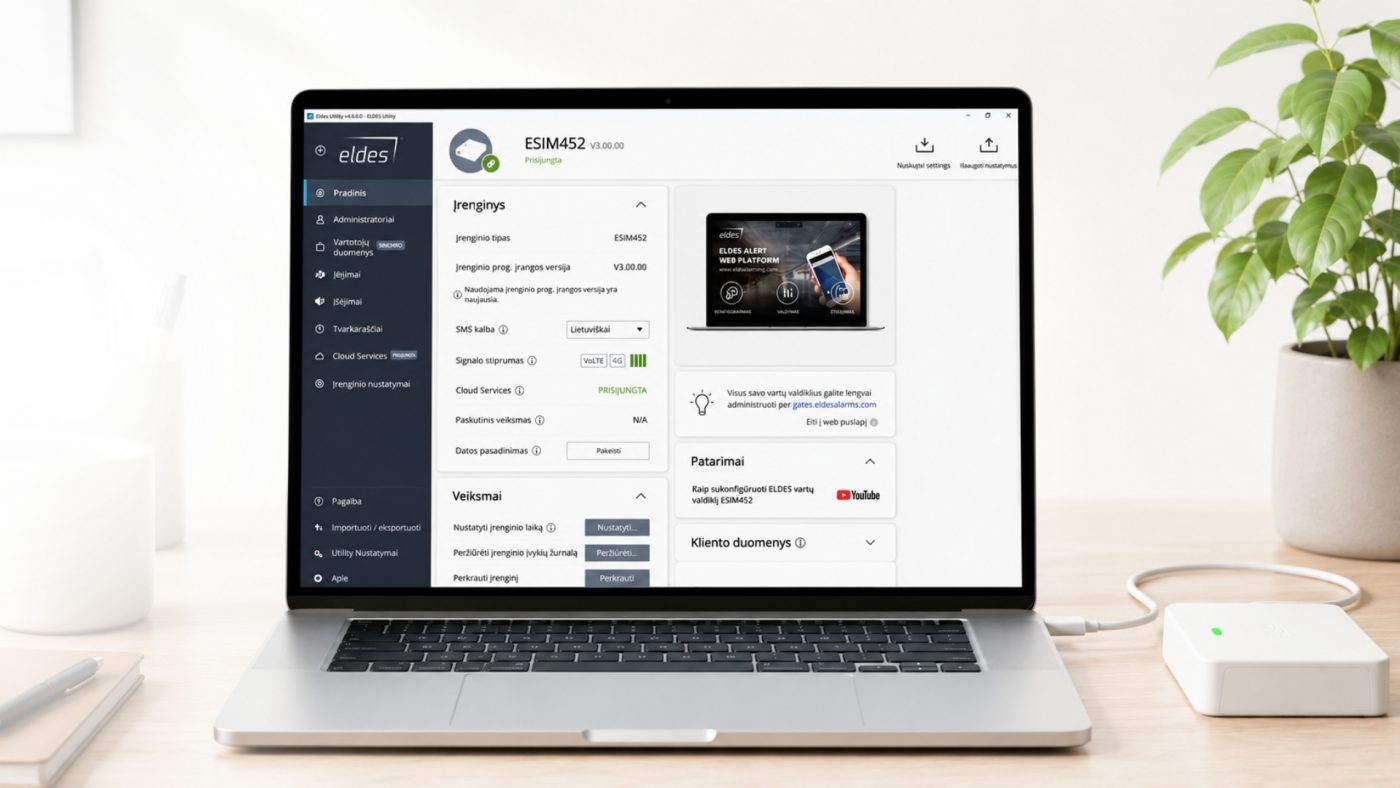
Configure ESIM452 via SMS or USB using ELDES Utility. Simple to configure, integrate, and adapt to different applications.
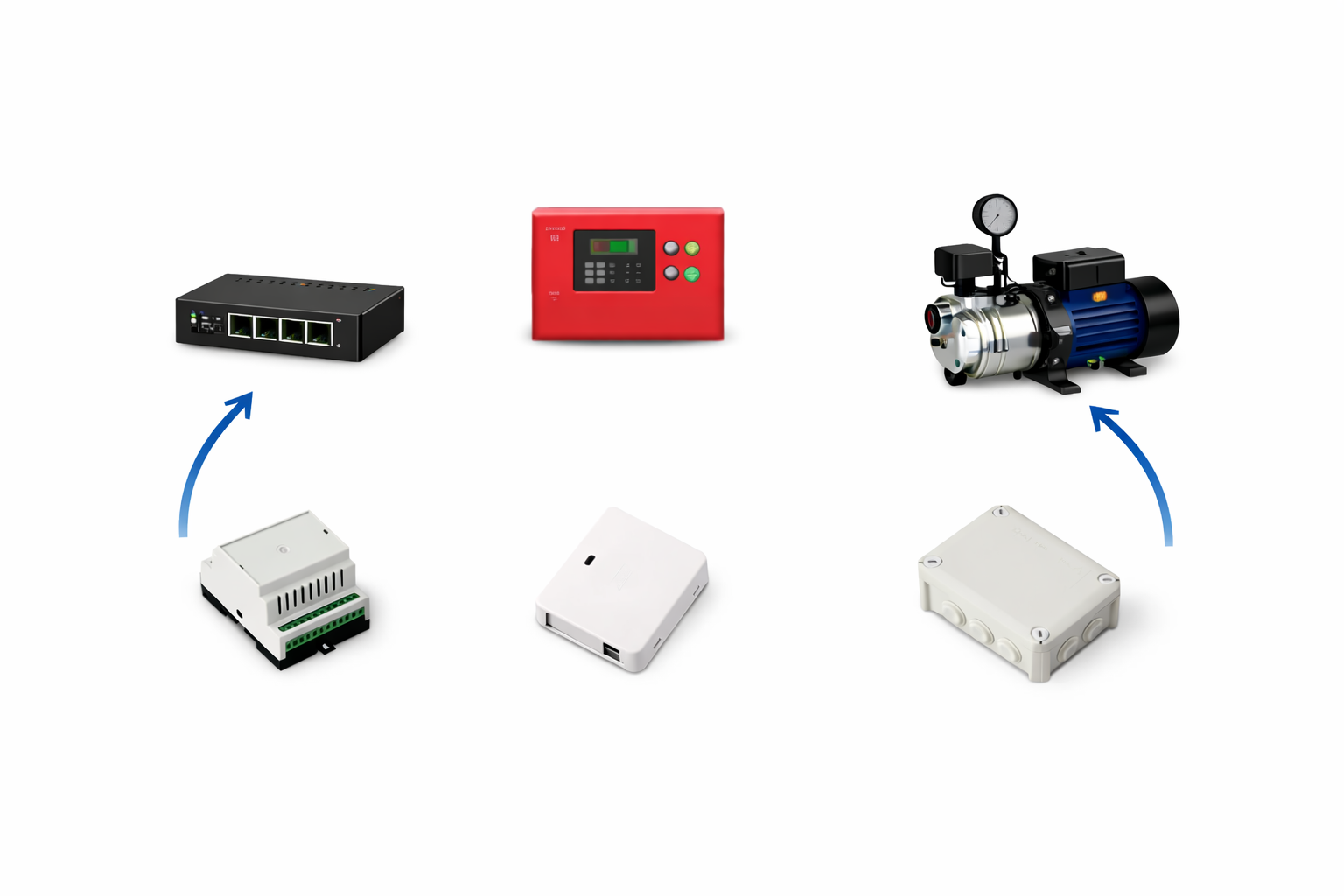
Versatile Applications
Designed for a wide range of applications, from alarm communication and technical monitoring to equipment control and automation.
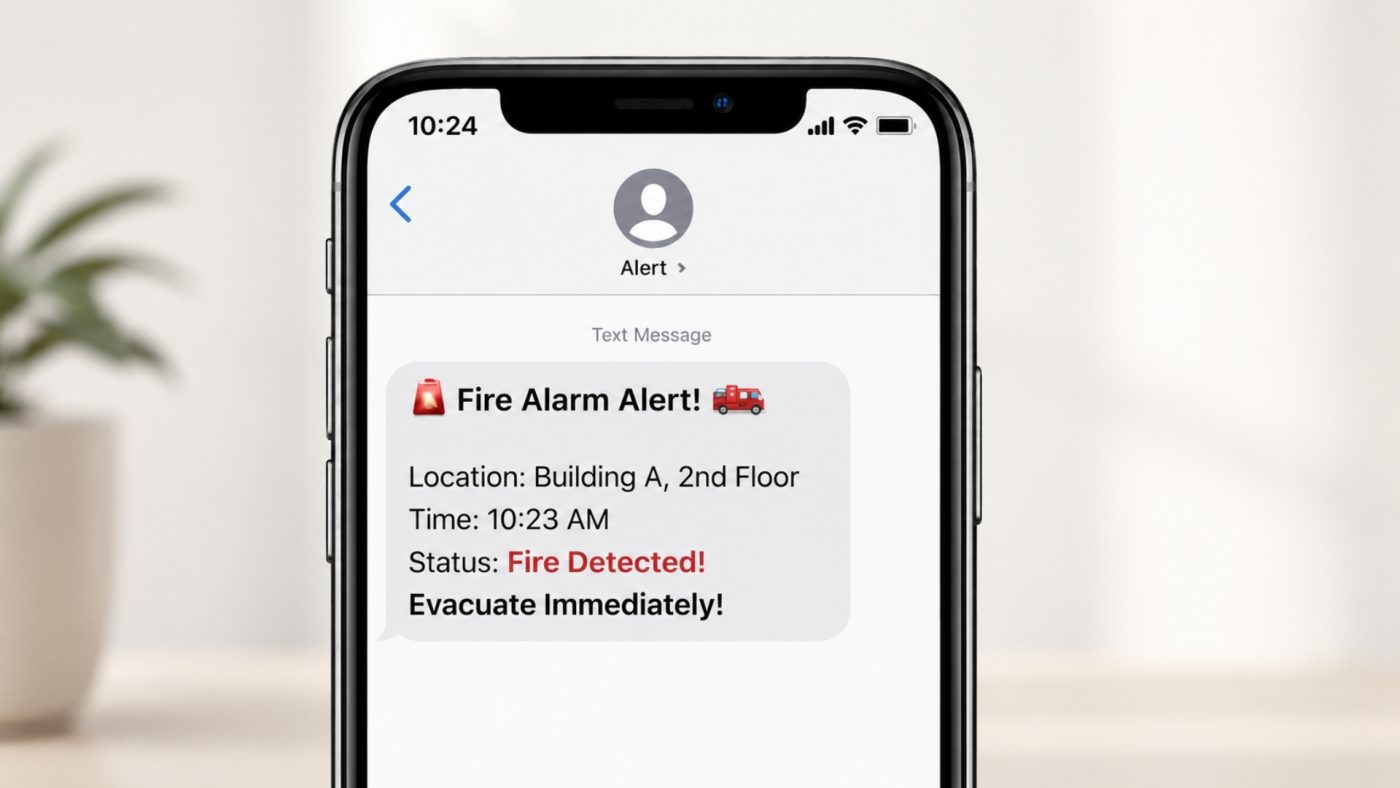
Clear Event Notifications
- SMS & Voice Call Notifications: Receive notifications when a connected input is triggered, helping users stay informed about alarms, faults, or other monitored events.
- Custom Messages for Each Input: Assign a dedicated message to each input, making it easy to identify which event has occurred.
Key Features
- Custom Voice Messages: Upload up to 10 prerecorded voice messages and assign them to different events. When an input is triggered, ESIM452 can call designated users and play the corresponding voice message, helping them quickly identify the event.
- 4G LTE Connectivity with 2G Fallback: ESIM452 uses 4G LTE for cellular communication and automatically switches to 2G when 4G is unavailable, providing additional network coverage where 2G service is still supported.
- Upgrade from ESIM252: ESIM452 is a modern replacement for ESIM252, providing 4G LTE connectivity while maintaining the core input, output, SMS, and voice call functionality used in existing applications.
- Remote Relay Control by Phone Call: Authorized users can control a relay output by calling ESIM452. The device recognizes the caller’s phone number and rejects the call before answering, allowing relay control without call charges.
Quick Specs for Installers
- 5 Configurable Digital Inputs: Connect thermostats, float switches, alarm outputs, fire panel PGMs, door contacts, and other compatible devices.
- 2 Relay Outputs: Control pumps, heating systems, sirens, or other connected equipment.
- 5 Authorized Users: Add up to 5 phone numbers to receive SMS or voice call notifications.
- 10 Voice Message Slots: Upload and assign prerecorded voice messages to different events.
- Configuration Options: Configure ESIM452 via USB using ELDES Utility or by SMS commands.
Specifications
| Users | up to 5 |
| Power supply | 10-24 V 50 Hz ~ 1000 mA max / 10-24 V 1000 mA max |
| Idle current | up to 50 mA |
| Modem frequency | 4G 700/800/900/1800/2100/2600 MHz; 2G 900/1800 MHz |
| Number of inputs | 5 |
| Number of outputs | 2 |
| Output type | Relay; NO (normally-open) or NC (normally-closed) – configurable |
| Maximum relay output ratings | 125 VAC ~ 0.5 A / 24 VDC 1 A |
| Event log | up to 500 events |
| Dimensions | 87×107×29 mm |
| Operating temperature range | -20…+55 °C |
| Humidity | 0-90% RH @ 0… +40°C (0-90% RH @ +32… +104°F) (non-condensing) |
FAQ
What software should I use for ESIM452 configuration?
ESIM452 can only be configured using ELDES Utility software. You can download software from ELDES Utility Tool – ELDES Alarms
How can I connect to my ESIM452 device to perform configuration?
Device must be connected to a power supply and powered on (please see the manual for the supply voltage required).
There are several ways to connect to the device:
1. You can do this locally using USB cable and ELDES Utility software installed on your Windows PC.
2. You can connect to the device remotely using the ELDES Utility software. Open ELDES Utility on your Windows PC, press Remote Connection Setup and follow the instructions in ELDES Utility. For remote connection to your ESIM452, SIM card that is inserted to device must have available mobile data!
How can I restart my dialer remotely?
Send SMS to SIM card inserted to ESIM452 with text:
XXXX RESTART (example: 1111 restart) (SMS can contain upper or lower case letters)
XXXX – Your SMS password. If you don‘t know your SMS password, please contact your system installer.
The system will inform you automatically via SMS message when ESIM452 is restarted. This might take up to 2 minutes.
Why does my ESIM452 not end the call before it reaches voicemail?
Please update FW to the latest version. If the problem remains, please change to another SIM card operator.
How can I update firmware (FW) for ESIM452?
ESIM452 firmware updates automatically via mobile networks when the device has access to mobile data. In most cases, the APN must be correctly configured in the device settings to allow this.
A manual update can also be performed by downloading the firmware from our website. Before updating the firmware, please make sure to save both the configuration file and the User Database of your dialer.
You can download the latest ESIM452 firmware from:
https://eldesalarms.com/gsm-dialer-esim452/#firmware
Please ensure you are logged in to our website to access the files. Once the firmware file is downloaded and saved to your PC, follow the steps below:
1. Power down the device.
2. Short-circuit (connect) the DEF pins.
3. Connect the device to your PC using a USB cable.
4. A new window should appear showing the .bin file. If it does not, open My Computer and locate the Boot Disk drive manually.
5. Delete the existing .bin file from the drive.
6. Copy the new firmware .bin file to the very same window.
7. Power down the device.
8. Disconnect the USB cable.
9. Remove the short-circuit from the DEF pins.
10. Power up the device.
11. The firmware update is now complete.
Where can I find ELDES product prices?
To get the prices of the devices please check ELDES distributors’ Internet sites. Otherwise, feel free to contact our partners in your country/city by telephone or e-mail.
How to change the SIM card?
To change the SIM card, first remove the PIN code from the card. Once the SIM card is replaced, test the new number by making a call. All users who previously accessed the dialer should be able to use the new number, but they will need to call the updated phone number. You might need to configure the GPRS settings, such as the APN, according to your GSM operator’s guidelines.
Manuals
Certificates
CE certificate of conformity